
If you’re using Tailwind CSS with VS Code, you’ve probably seen suggestions from the Tailwind CSS IntelliSense extension to convert arbitrary selectors into more canonical syntax. In VS Code, this appears as a “suggest canonical classes” hint when non-canonical Tailwind syntax is detected.
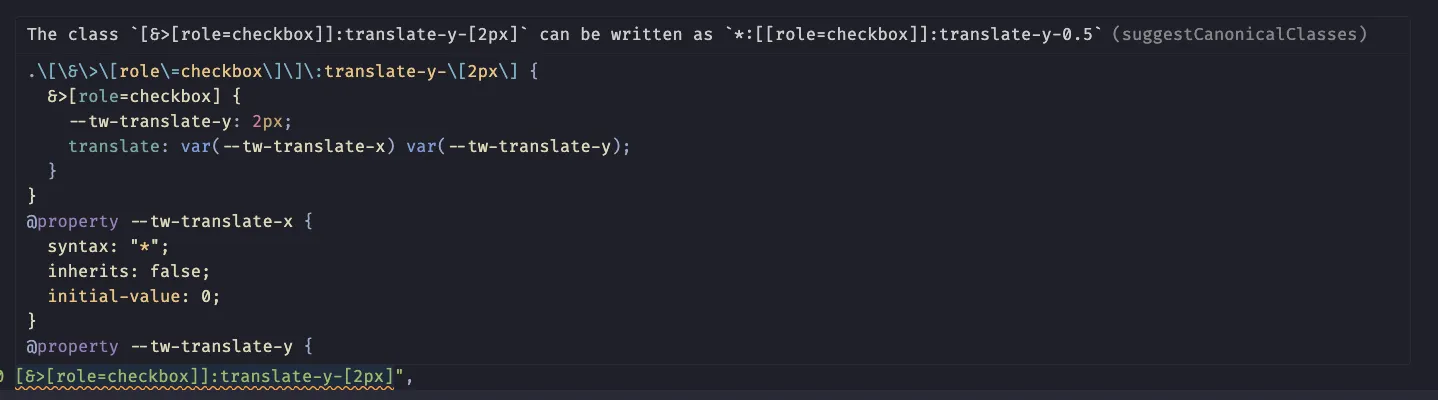
The extension helpfully suggests converting your arbitrary selectors to more canonical syntax. For example:
className="[&>[role=checkbox]]:translate-y-[2px]"className="*:[[role=checkbox]]:translate-y-0.5"This is great for learning Tailwind’s modern syntax, but manually updating these across an entire codebase? That’s tedious work and I’m lazy.
What is the Tailwind Upgrade CLI?
Tailwind CSS has an official upgrade tool that automates this process:
pnpx @tailwindcss/upgradeThis command will:
- Scan your entire project for Tailwind classes
- Convert deprecated syntax to modern equivalents
- Update to canonical class forms
- Safely transform your codebase
It does other stuff too like upgrading between Tailwind versions, but we’re benefiting from the canonical class conversion here.
How does it work?
Here’s what it looks like in action. Before running the upgrade:
<div className="[&>[role=checkbox]]:translate-y-[2px]">{/* content */}</div>After running pnpx @tailwindcss/upgrade:
<div className="*:[[role=checkbox]]:translate-y-0.5">{/* content */}</div>As you can see some transformations were applied:
- The
*:universal selector variant is cleaner and more idiomatic in modern Tailwind CSS. - The
0.5value is the canonical way to express2pxin Tailwind’s spacing scale.
The CLI analyzes your entire project and applies these transformations automatically.
Why use canonical syntax?
Using canonical syntax isn’t just about following conventions:
- Improves readability - Standard patterns are easier for your team to understand and maintain.
- Better IntelliSense - More reliable autocomplete and suggestions in your editor.
- Aligns with docs - Your code matches official Tailwind documentation examples, making it easier to reference.
- Future-proofs - Canonical syntax is less likely to need updates in future Tailwind versions.
When to run it
I recommend running the upgrade CLI:
- After upgrading Tailwind versions
- When onboarding to a new project with older Tailwind code
- Before major refactoring work
- Periodically to keep your codebase modern
- After using a code generator that outputs Tailwind classes like shadcn or similar
- After our robot friends generate code for us (like GitHub Copilot, Claude, ChatGPT etc)
Works with all major package managers
# pnpmpnpx @tailwindcss/upgrade# bunbunx @tailwindcss/upgrade# npmnpx @tailwindcss/upgrade# yarnyarn dlx @tailwindcss/upgradeBonus: Pair with Prettier or other formatters
For the ultimate Tailwind class management, combine this with the official Prettier plugin:
pnpm add -D prettier-plugin-tailwindcssOr with Biome’s use sorted classes rule
{ "linter": { "rules": { "nursery": { "useSortedClasses": "error" } } }}This gives you automatic class sorting (Prettier plugin or Biome) and canonical syntax updates (upgrade CLI).
Together, they keep your Tailwind code clean and modern with minimal effort.
Another Bonus: Let ESLint plugins take care of this too
eslint-plugin-better-tailwindcss’s upcoming version 4 will offer enforce-canonical-classes which can enforce canonical class suggestions as part of your linting process.
There are also other dedicated plugins that accomplish the same:
And if [Feature request] Canonical class name rule gets implemented, the popular eslint-plugin-tailwindcss could also handle this in the future.
Wrapping up
The @tailwindcss/upgrade CLI is one of those tools I wish I’d known about sooner. It turns a tedious manual process into a single command.
Next time VS Code suggests a canonical class format, remember: you don’t have to update them one by one. Let the upgrade CLI handle it for you.